Add Your Logo or House Number to Exterior Photos
Digitally insert a custom real estate logo or house number onto a signpost, ensuring perfectly matched perspective and lighting.
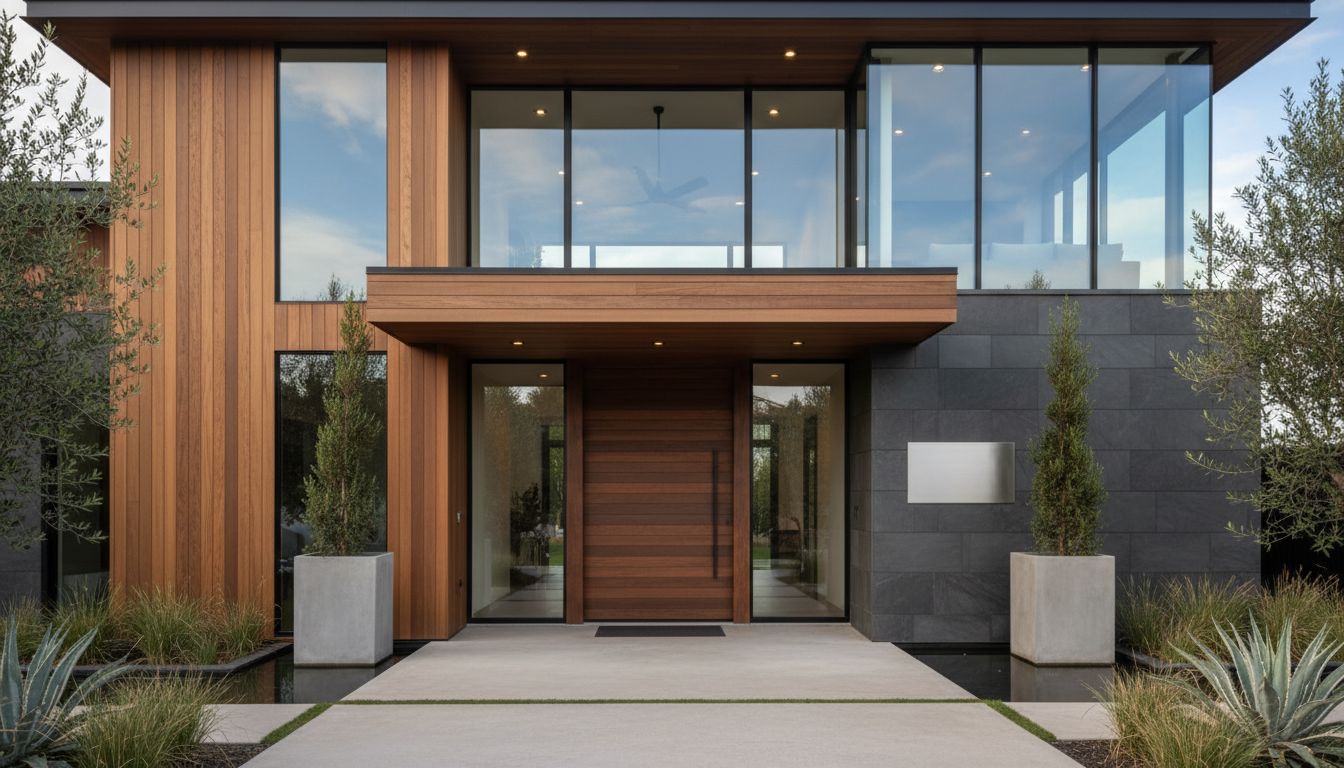
The Original Scene
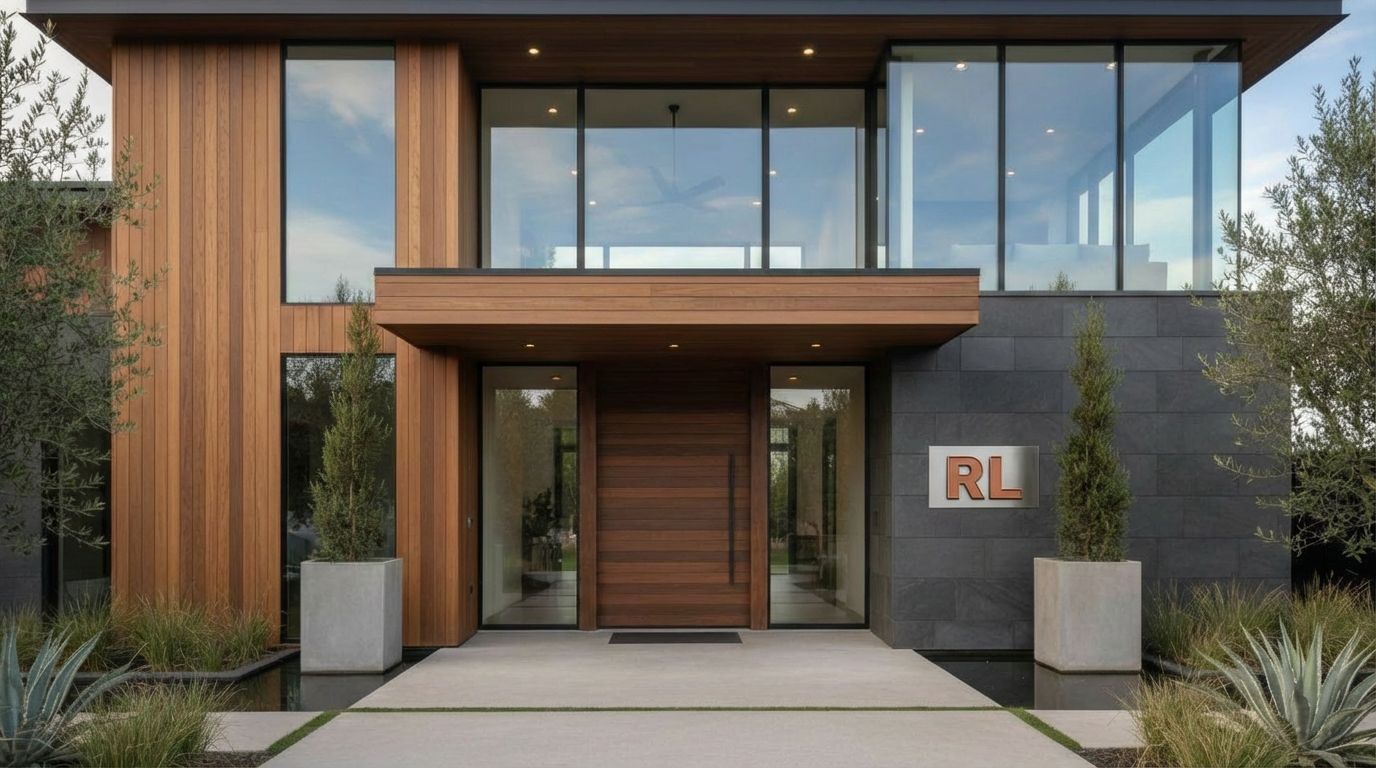
RoomLab's Custom mode is not limited to adding people or changing decor -- it can also incorporate branding elements into architectural photography. This example demonstrates a powerful use case: taking a modern house exterior and a separate logo image, then generating a result where the logo appears as a physical sign mounted on the building's facade. The 'RL' logo, rendered in a warm terracotta color on a white background, was used as a reference image alongside the house photo, and the AI placed it as a dimensional sign on the dark slate wall beside the front entrance.
The Custom Transformation
The original house is a striking contemporary design with vertical cedar cladding, a large horizontal wood-grain front door, tall glass panels flanking the entry, and an upper story of floor-to-ceiling windows. Concrete planters with columnar evergreens frame the entrance walkway, while ornamental grasses and agave plants fill the low-water landscaping on either side. A small water feature reflects near the left edge of the frame. The dark gray stone accent wall to the right of the door provides a clean, textured surface -- an ideal placement for signage.
Creative Applications
In the result, the 'RL' letters appear mounted on the stone wall in what looks like dimensional metal signage, matching the terracotta color of the original logo and sitting at an appropriate scale relative to the architecture. The sign looks physically integrated into the wall rather than digitally pasted. This capability is extremely valuable for architects presenting branding concepts, businesses visualizing storefront signage, real estate developers showing model home branding, or anyone who needs to preview how a logo or sign would look on a building before committing to fabrication.
Inputs Used

Custom Prompt Used
"Add the RoomLab logo from the reference image to the house sign or nameplate, making it look professionally installed and integrated with the house design"
Ready to Transform Your Space?
How to Recreate This
Place a branded logo sign onto a modern house exterior, using a reference image to guide the AI in creating realistic architectural signage.
✨ What You'll Achieve
Original Room
After
Select Mode
Custom mode's reference image feature lets you combine a building photo with a logo file, enabling the AI to visualize branding elements as physical signs on real architecture.
Upload Your Room
Upload your house or building exterior photo, focusing on the facade or wall where you want the sign placed. Also upload your logo as a reference image.
Configure Options
Specify the sign material (metal, illuminated, flat), its approximate size relative to the building, and the exact wall or surface for placement. The AI uses both your text prompt and the reference image for guidance.
Generate
The AI produces a photorealistic result with the logo rendered as dimensional signage on the specified wall surface, color-matched to the reference, and scaled naturally within the building's architecture.
Your Result
🎯 Try the Result
Drag the slider to compare before and after!
Frequently Asked Questions
Can RoomLab add a logo or sign to a building exterior?
Yes. Using Custom mode with a reference image, you can upload your building photo alongside your logo file and describe where you want the sign placed. The AI generates a realistic rendering of the logo as physical signage integrated into the building's architecture, matching materials and scale appropriately.
How does the reference image feature work in Custom mode?
Custom mode allows you to upload a reference image in addition to your main room or building photo. The AI uses the reference as visual guidance -- in this case, it took the 'RL' logo reference and translated it into dimensional signage on the house's stone wall, preserving the logo's colors and proportions.
Is this useful for previewing commercial signage before installation?
Absolutely. Architects, business owners, and sign fabricators can use this to preview how branding will look on a specific building before investing in production. It saves time and money on mockups and helps clients make confident decisions about sign placement, scale, and color against the actual facade.
Custom Prompt
Explore landing.examples.ui.breadcrumbs.other Feature
Custom AI Prompts
Read the landing.examples.ui.breadcrumbs.other Tutorial
Related Examples
More landing.examples.ui.breadcrumbs.other Examples

Add People Collaborating to Your Office Photo
Add Christmas Decorations to Your Room Photos
Add a Dog or Cat to Your Living Room Photo
Add a Person Reading in a Cozy Corner
Add a Person Gaming to Your Setup Photo